> ## Documentation Index
> Fetch the complete documentation index at: https://support.customtypeone.com/llms.txt
> Use this file to discover all available pages before exploring further.
# Dexcom
> Connect using your Dexcom username and Clarity account
**Japan and Singapore users:** Follow the **Gluroo** instructions instead to link SugarPixel Mini/Classic to your Dexcom account.
If your Dexcom account was created in the USA, leave **USA Server** enabled. If your account was created outside the USA, turn it off.
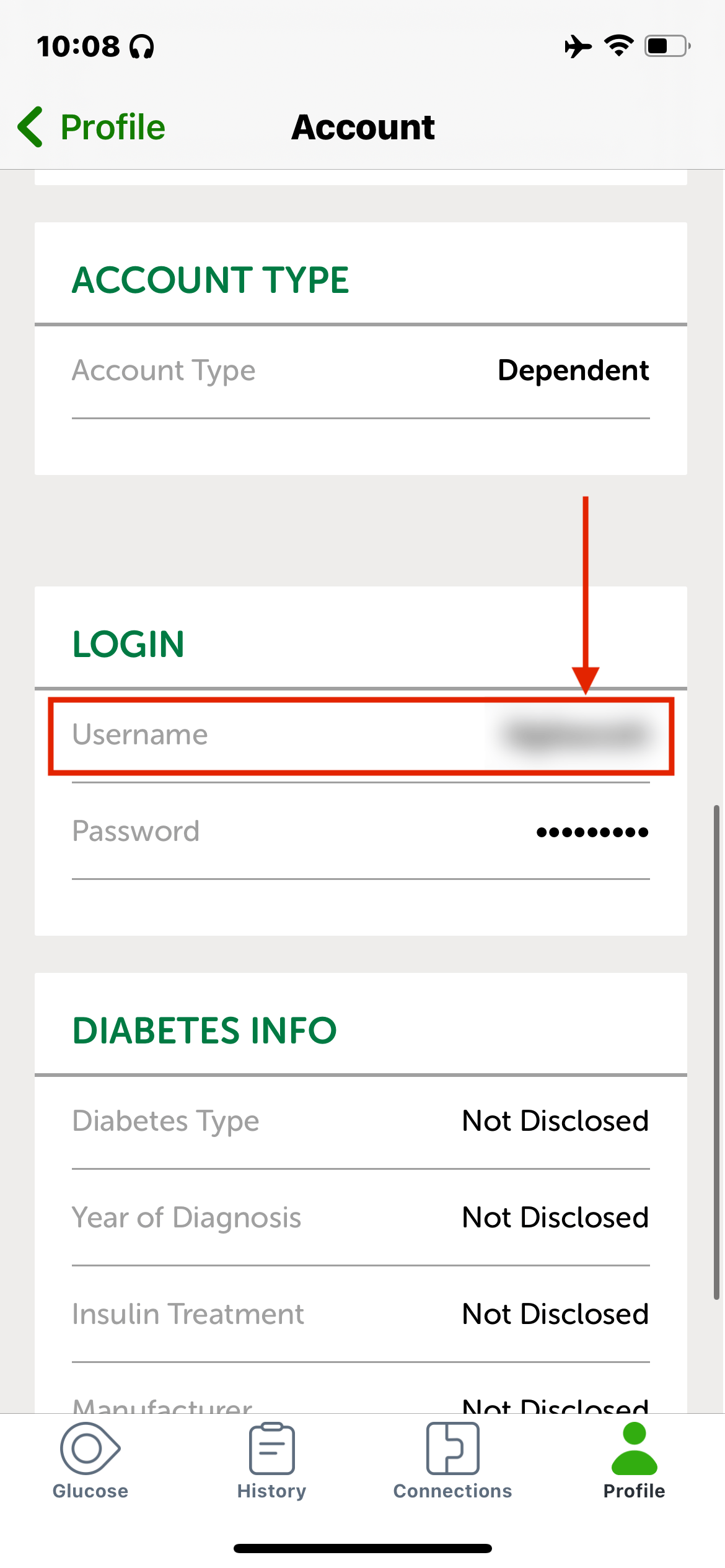 Open the Dexcom app and go to **Settings → Account** (G6) or **Profile → Account** (G7). Use the username shown under **LOGIN** — this is what you enter in SugarPixel Mini/Classic. If your username is a phone number, the **+** and country code are required — for example, **+13334445555**.
Before entering your password in SugarPixel Mini/Classic, confirm it works on the Dexcom website first:
* **USA:** [clarity.dexcom.com](https://clarity.dexcom.com)
* **Outside USA:** [clarity.dexcom.eu](https://clarity.dexcom.eu)
If you can't log in there, SugarPixel Mini/Classic won't be able to connect either. Reset your password on the Dexcom site if needed — for dependent accounts, enter the dependent username and the reset email goes to the caregiver's address.
Dexcom only uploads real-time data when **Sharing is enabled** and at least **one follower exists**. Add a follower in the Dexcom app before continuing. If you don't want others following you, invite yourself and install the Follow app with alerts disabled.
Enter your Dexcom username and password and tap **Sync CGM**. SugarPixel Mini/Classic will display **"DOWNLOAD"** and then begin showing readings.
### Troubleshooting
This documentation is built and hosted on [Mintlify](https://mintlify.com), a developer documentation platform.
Open the Dexcom app and go to **Settings → Account** (G6) or **Profile → Account** (G7). Use the username shown under **LOGIN** — this is what you enter in SugarPixel Mini/Classic. If your username is a phone number, the **+** and country code are required — for example, **+13334445555**.
Before entering your password in SugarPixel Mini/Classic, confirm it works on the Dexcom website first:
* **USA:** [clarity.dexcom.com](https://clarity.dexcom.com)
* **Outside USA:** [clarity.dexcom.eu](https://clarity.dexcom.eu)
If you can't log in there, SugarPixel Mini/Classic won't be able to connect either. Reset your password on the Dexcom site if needed — for dependent accounts, enter the dependent username and the reset email goes to the caregiver's address.
Dexcom only uploads real-time data when **Sharing is enabled** and at least **one follower exists**. Add a follower in the Dexcom app before continuing. If you don't want others following you, invite yourself and install the Follow app with alerts disabled.
Enter your Dexcom username and password and tap **Sync CGM**. SugarPixel Mini/Classic will display **"DOWNLOAD"** and then begin showing readings.
### Troubleshooting
This documentation is built and hosted on [Mintlify](https://mintlify.com), a developer documentation platform.