> ## Documentation Index
> Fetch the complete documentation index at: https://support.customtypeone.com/llms.txt
> Use this file to discover all available pages before exploring further.
# Mobile App Setup
SugarPixel Mini/Classic is configured using the **SugarPixel Hub** app ([iPhone](https://www.customtypeone.com/SugarPixeliPhone) / [Android](https://play.google.com/store/apps/details)). It connects to SugarPixel Mini/Classic via **Bluetooth** for setup only — once configured, SugarPixel Mini/Classic runs completely independently.
Download and install the app, allow **all permissions** including notifications (required for firmware update alerts), then read the following before connecting:
* **The app does not connect to your CGM** and does not need to be on the same phone as your CGM app.
* **Multiple phones** can configure the same SugarPixel Mini/Classic. One phone can also manage **multiple SugarPixels** — each appears as a separate device and is configured independently.
* **All settings are saved on the SugarPixel Mini/Classic**, not in the app.
* **The app is not meant to stay connected.** Always tap **Disconnect** in the app menu when you finish making changes. Leaving it connected can interfere with WiFi downloads and may require a reboot to reconnect.
**Do not connect using your phone's system Bluetooth settings.** Always connect from within the SugarPixel Hub app.
When the app opens, it automatically scans for nearby SugarPixels. Your device will appear in a list — each SugarPixel Mini/Classic has a unique name (for example: **SugarPixel-2A28**).
**Tap directly on your SugarPixel Mini/Classic's name in the list** to begin configuration.
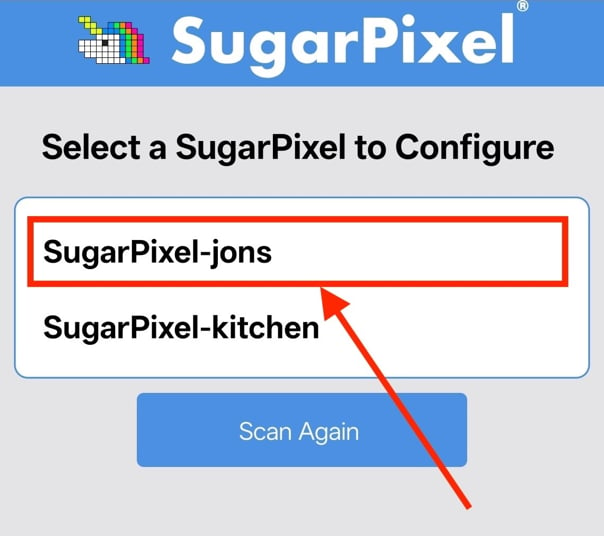 If no devices appear, tap **Scan Again**. If your SugarPixel Mini/Classic still doesn't show up, move closer to the device, unplug and replug it to reboot, then scan again. If the scan shows **"Stopped"**, make sure Bluetooth is enabled and all app permissions are allowed.
Still having trouble? See **Troubleshooting** below.
The first time you connect from a new phone, your phone will show a **Bluetooth pairing prompt** asking for a PIN code.
At the same moment, your SugarPixel Mini/Classic's **physical screen** will display a unique **6-digit code**. Type that exact code into your phone's prompt.
If no devices appear, tap **Scan Again**. If your SugarPixel Mini/Classic still doesn't show up, move closer to the device, unplug and replug it to reboot, then scan again. If the scan shows **"Stopped"**, make sure Bluetooth is enabled and all app permissions are allowed.
Still having trouble? See **Troubleshooting** below.
The first time you connect from a new phone, your phone will show a **Bluetooth pairing prompt** asking for a PIN code.
At the same moment, your SugarPixel Mini/Classic's **physical screen** will display a unique **6-digit code**. Type that exact code into your phone's prompt.

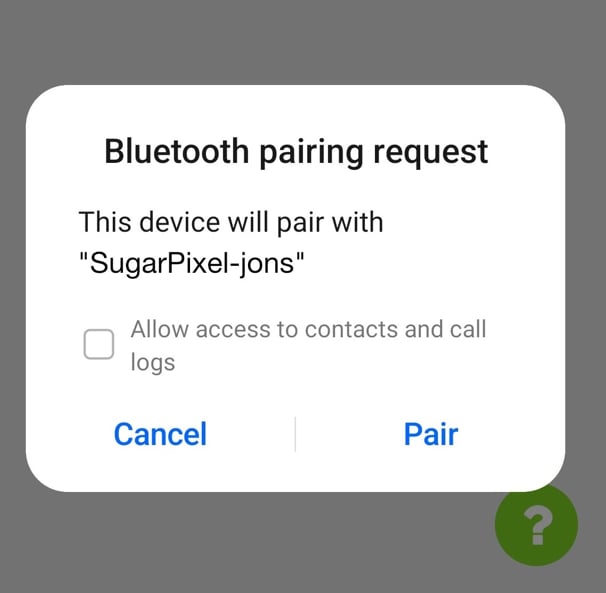 **Do not enter example codes** suggested by your phone (such as 0000 or 1234). The code must be the exact 6-digit number shown on the SugarPixel Mini/Classic screen — it is unique every time you pair a new phone.
### Troubleshooting
This documentation is built and hosted on [Mintlify](https://mintlify.com), a developer documentation platform.
**Do not enter example codes** suggested by your phone (such as 0000 or 1234). The code must be the exact 6-digit number shown on the SugarPixel Mini/Classic screen — it is unique every time you pair a new phone.
### Troubleshooting
This documentation is built and hosted on [Mintlify](https://mintlify.com), a developer documentation platform.