

Getting Help
How to reach support if you get stuck
Getting Help
How to reach support if you get stuck
Need help at any point during setup? Connect to your SugarPixel and use the Contact Support button at the top of the help popup.For accurate support, please contact us directly. Third-party advice from Facebook groups or forums is often incorrect. We don’t offer phone support, but aim for fast, accurate written responses.
What's in the Box
Check that you have everything before getting started
What's in the Box
Check that you have everything before getting started
Your Sidekick box should contain — some items may be wrapped in bubble wrap:
- Sidekick
- USB wall charger
- USB power cable
Important: Incorrect setup can prevent alarms, damage the device, create a fire risk, and void the warranty.
Setup
Plug in Sidekick, connect your alert devices, and run a test
Setup
Plug in Sidekick, connect your alert devices, and run a test
Plug In Sidekick
- Understand the Ports
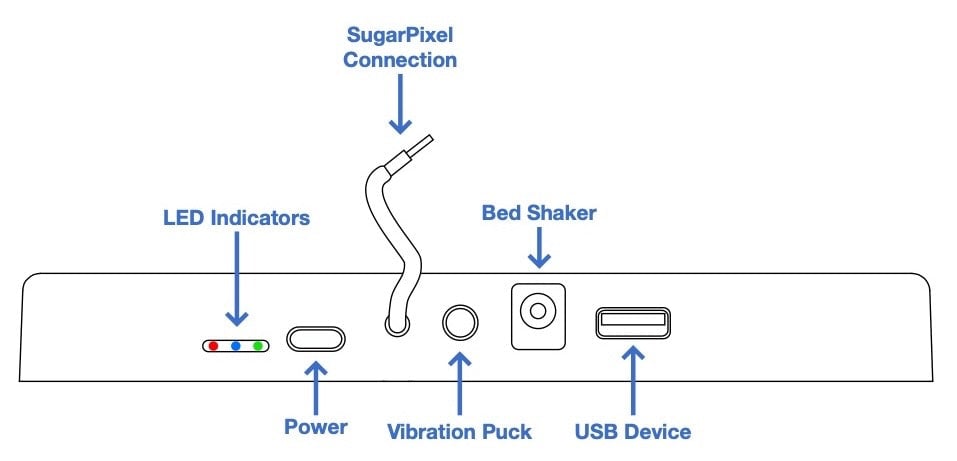
- Mount and Connect
- Remove the red warning sticker from the back of Sidekick if present.
- Sidekick sits directly under SugarPixel. Remove the adhesive covering from the attachment dots on top of Sidekick, align SugarPixel, and press down to affix.
- Plug the built-in cable into the vibration port on SugarPixel.
- Plug in the supplied power cable and wall charger.
Alert Devices
Vibration Puck
Sidekick uses the same vibration port as SugarPixel but provides its own port so you can continue using the included vibration puck alongside other devices. Plug the puck into the vibration port on Sidekick.Bed Shaker
Sidekick has a dedicated port for a standard bed shaker. Plug the bed shaker into the Sidekick port and set the low/medium/high intensity switch to your preference.We have tested the bed shaker linked in the external device reference. If you use a different model that works well, send us the link at support@customtypeone.com so we can add it.USB Device
The Sidekick USB-A port supports a wide variety of USB-powered devices. Requirements:- Max 1A power draw — do not use devices requiring more than 1A.
- The device must turn on automatically when powered — if it turns on immediately when plugged into a USB wall charger, it will work with Sidekick.
Important: Do not plug in a USB hub or splitter. To use multiple USB devices, chain additional Sidekicks together.
Expandability: Multiple Sidekicks can be chained together. Connect the built-in cable from each additional Sidekick into the vibration port of the previous one. Each Sidekick requires its own supplied wall charger. Two chained Sidekicks support 2 vibration pucks, 2 bed shakers, and 2 USB devices — and so on.
Testing Alerts
- Open the SugarPixel app and connect to your SugarPixel.
- Confirm vibration alerts are enabled under Alert Settings. Sidekick alerts only trigger when vibration or ascending alerts are turned on.
- Tap Test Alert in the Alert Settings screen.
- Confirm your external devices activate as expected.