

Time Settings
Time Settings
- Time Zone
Select the correct time zone — clock displays, Quiet Hours, and alerts all depend on it. If alerts behave unexpectedly, verify this first. - Display 24-Hour Time
Enables 24-hour time format on displays that show a clock.
Quiet Hours
Schedule times when all alerts are silenced
Quiet Hours
Schedule times when all alerts are silenced
Define times when SugarPixel Mini/Classic will not alert. Tap any hour block to toggle it — red = alerts off, green = alerts on. Each block covers one full hour (e.g. block “10” covers 10:00–10:59). Drag left or right to see all 24 hours.Use Clear Schedule to reset all quiet hours.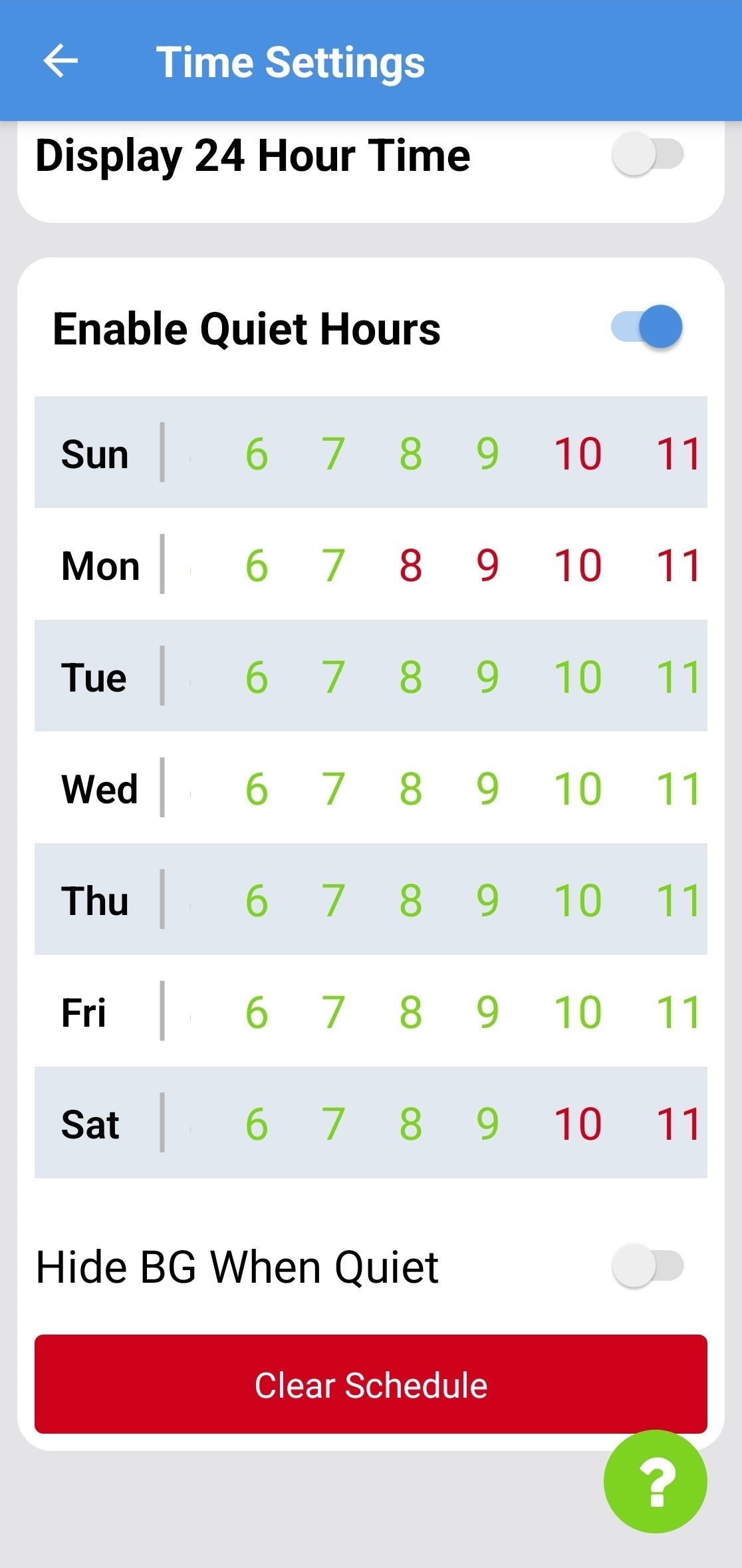
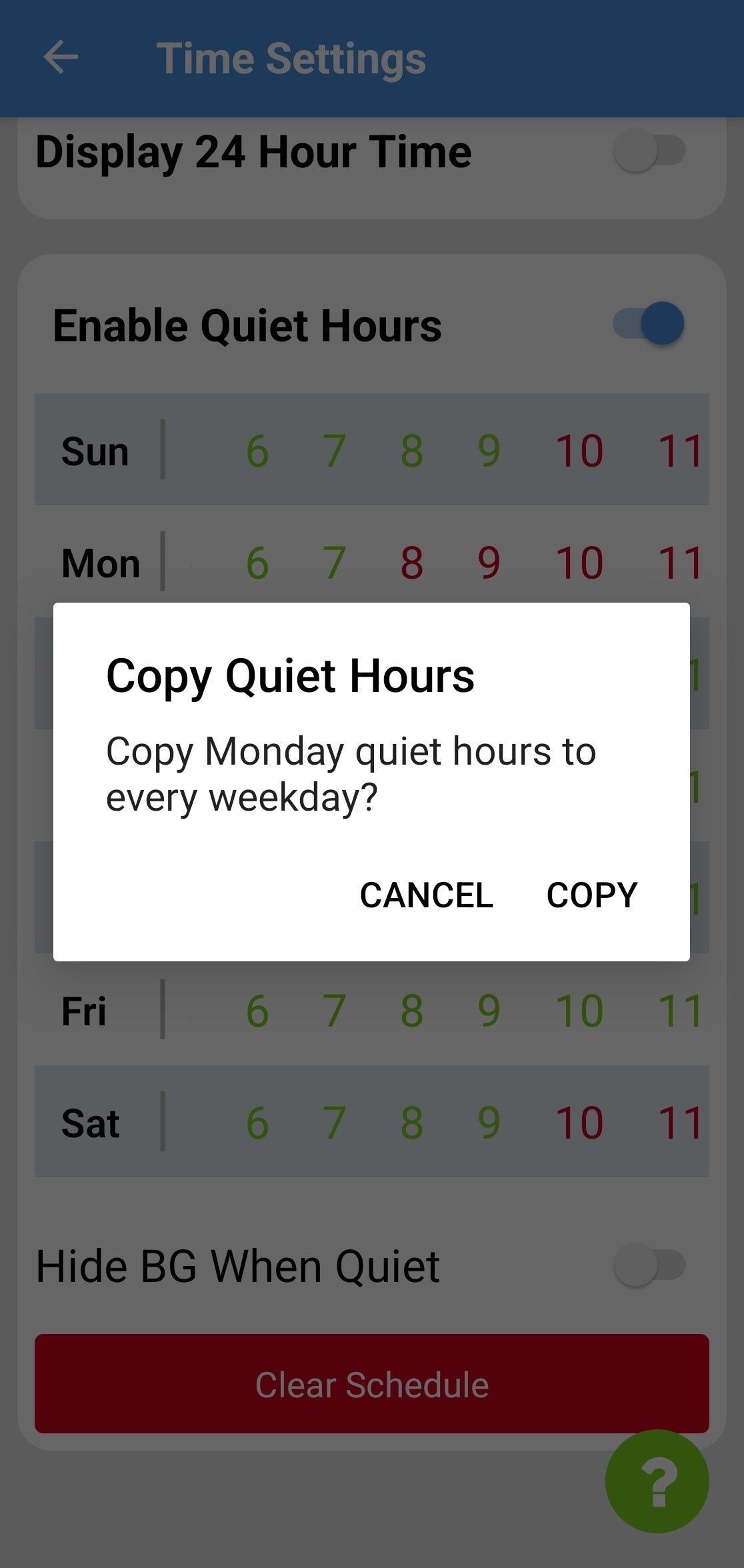
Copy / Paste Days — Tap Sun to copy Sunday’s schedule to Saturday, or Mon to copy Monday’s schedule to all weekdays. Adjust individual days after.
Quiet Hours depend on your Time Zone, configured in Time Settings. If alerts fire at unexpected times, check that your time zone is correct.