1
Install the app and review the basics
Download and install the app, allow all permissions including notifications (required for firmware update alerts), then read the following before connecting:
- The app does not connect to your CGM and does not need to be on the same phone as your CGM app.
- Multiple phones can configure the same SugarPixel Mini/Classic. One phone can also manage multiple SugarPixels — each appears as a separate device and is configured independently.
- All settings are saved on the SugarPixel Mini/Classic, not in the app.
- The app is not meant to stay connected. Always tap Disconnect in the app menu when you finish making changes. Leaving it connected can interfere with WiFi downloads and may require a reboot to reconnect.
2
Connect to your SugarPixel Mini/Classic
When the app opens, it automatically scans for nearby SugarPixels. Your device will appear in a list — each SugarPixel Mini/Classic has a unique name (for example: SugarPixel-2A28).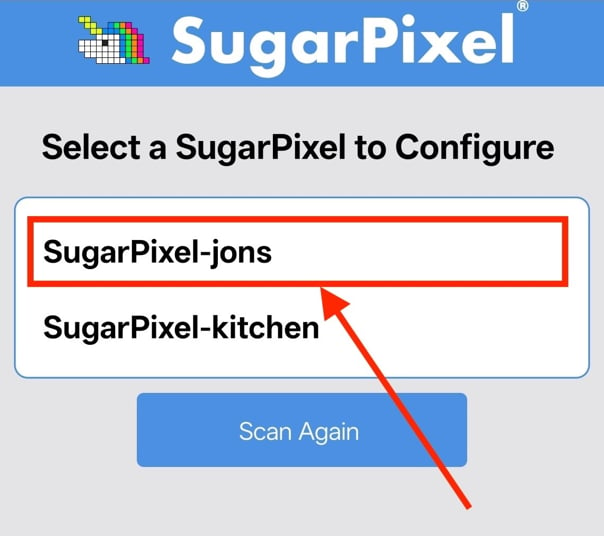
Tap directly on your SugarPixel Mini/Classic’s name in the list to begin configuration.
3
Enter the pairing code
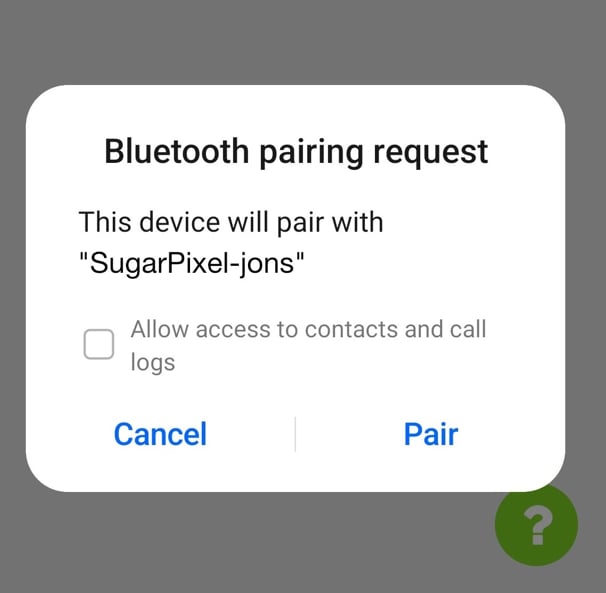
The first time you connect from a new phone, your phone will show a Bluetooth pairing prompt asking for a PIN code.At the same moment, your SugarPixel Mini/Classic’s physical screen will display a unique 6-digit code. Type that exact code into your phone’s prompt.