

-
Enable update notifications
Turn on notifications for the SugarPixel app in your phone’s settings so you’re alerted when updates are available. -
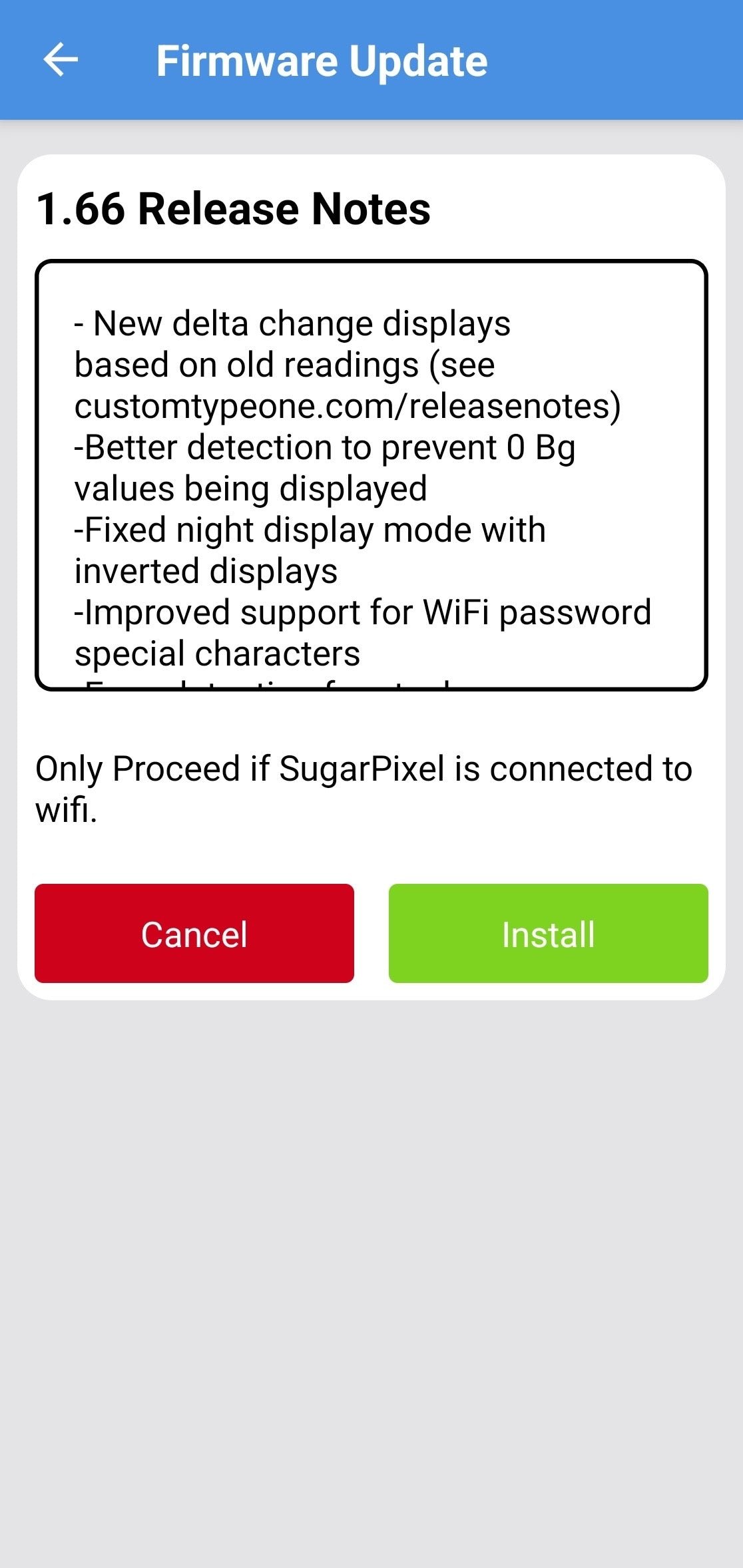
Install the update
Tap Install in the app. SugarPixel Mini/Classic displays “UPDATE” while the update runs — follow the on-screen instructions. Tap Update App to confirm you’re on the latest app version. -
If the update stalls
If “UPDATE” shows for more than 10 minutes: reboot your phone, unplug and replug SugarPixel Mini/Classic, temporarily disable phone WiFi, then retry.
Bluetooth Update Mini
SugarPixel Mini can also be updated over Bluetooth from the app. Only use the Bluetooth updater if:- the WiFi update failed, or
- you need to update while SugarPixel Mini isn’t connected to WiFi.