Quiet Hours are times when SugarPixel Mini/Classic won’t alert. Open your SugarPixel’s settings and tap Quiet Hours (or use the Quiet hours step of the setup wizard).
Set Quiet Hours for times when nobody is near SugarPixel Mini/Classic to snooze it. Alerts that keep running unsnoozed wear out the vibration puck and bed shaker motors, and Quiet Hours are required to keep their warranty coverage.

Set Quiet Hours

  1. Turn on Use quiet hours.
  2. Tap the hours when it shouldn’t alert. Highlighted (purple) hours won’t alert. Each block covers one full hour — for example, 10 covers 10:00–10:59.
  3. Under On these days, tap the days the schedule applies to.
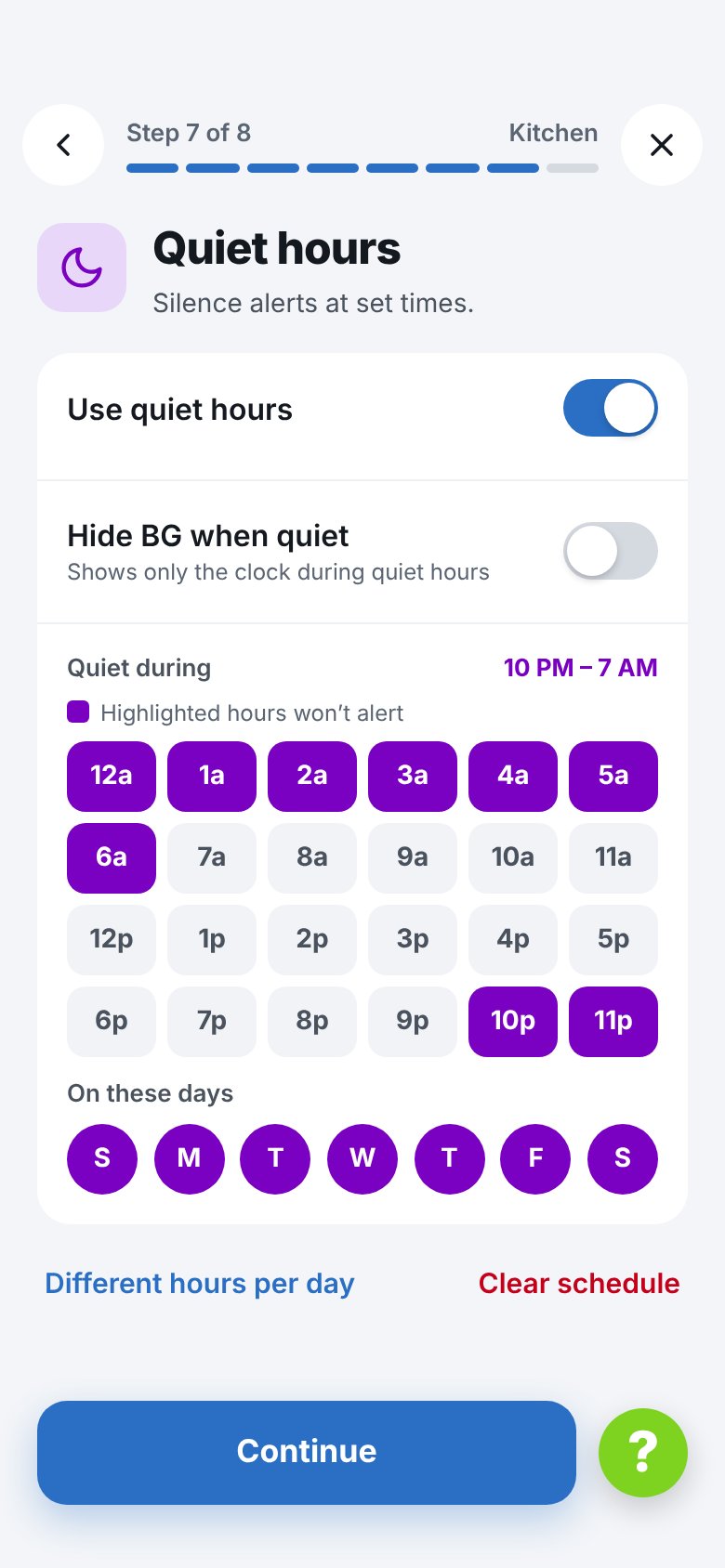
Quiet hours with the same hours every day
Tap Clear schedule to remove all Quiet Hours for the whole week.
Quiet Hours follow your Time zone (see Prefs). If alerts happen at unexpected times, check that it’s correct.

Different Hours per Day

Tap Different hours per day to see the whole week. Tap a day to edit its hours, then use Copy [day] to → Weekdays, Weekend or All days to copy them. Tap Same hours every day to go back to one schedule.

Hide BG During Quiet Hours

When Hide BG when quiet is on, the display switches to a clock-only view during Quiet Hours, hiding glucose readings from the screen.