

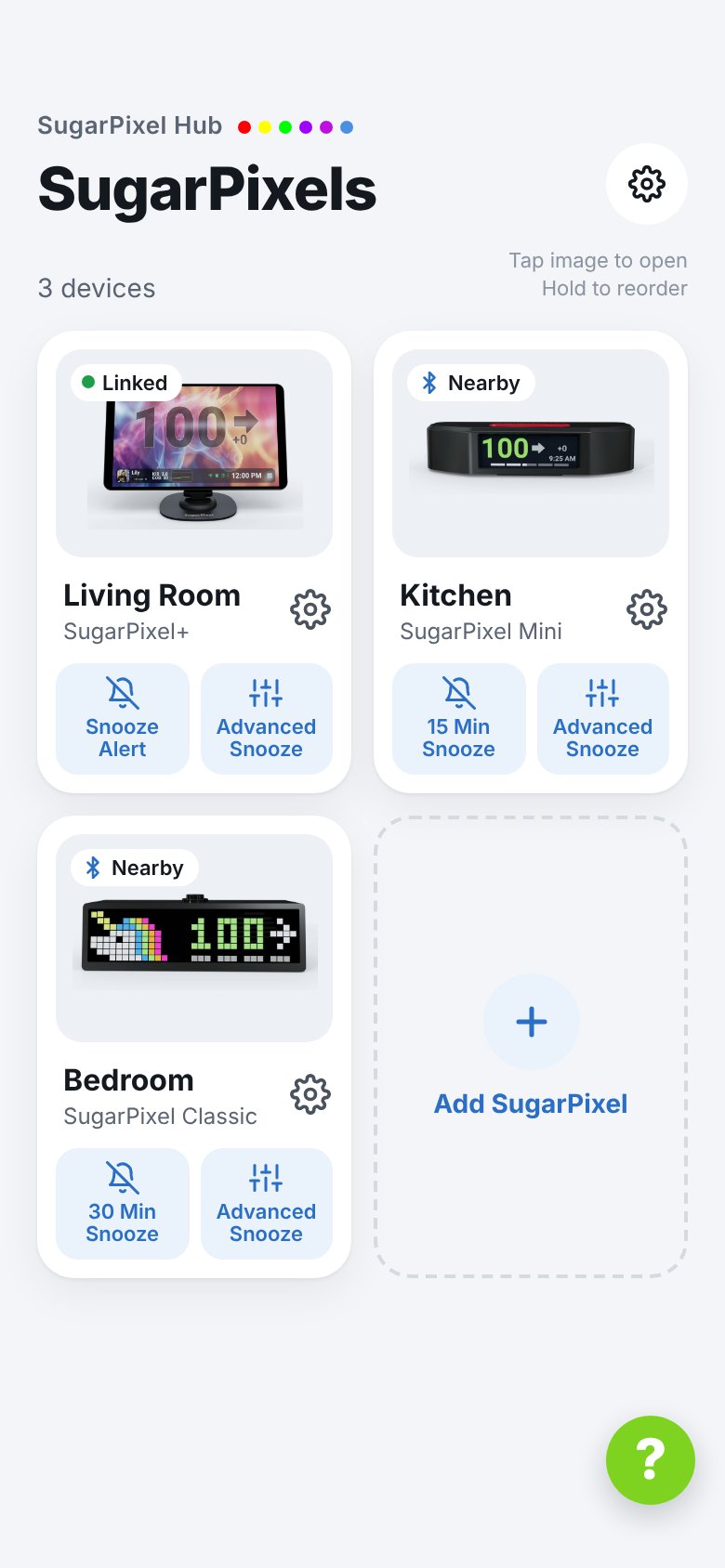
SugarPixel Cards
The label on each card’s picture shows whether the app can reach it:- Nearby Mini Classic — in Bluetooth range. You can open its settings and snooze it.
- Not nearby Mini Classic — not found recently. Move closer, or unplug it for a few seconds and plug it back in. See SugarPixel Mini/Classic Not Shown in the App.
- Linked / Not linked SugarPixel+ — whether this phone is paired for Remote Snooze. A linked SugarPixel+ can be snoozed from anywhere with internet.
- Tap the picture to open its settings. The app connects over Bluetooth and disconnects again when you go back to the home screen. If setup isn’t finished, the setup wizard opens instead.
- [Time] Snooze (for example 15 Min Snooze) quick-snoozes all alerts for that time, whether or not one is going off. See Snoozer.
- Advanced Snooze snoozes for a time you choose. See Snoozer.
- ⚙ next to the name opens the options menu.
Options Menu
Tap the ⚙ (gear) next to a SugarPixel’s name on its card. (The ⚙ at the top right of the screen is App Settings.)- Settings — opens its settings, the same as tapping the picture.
- Rename — 4–12 letters or numbers. The name is saved on the SugarPixel too, so it needs to be Nearby. See Prefs.
- Quick snooze time — how long the quick snooze button on its card snoozes all alerts for (5–60 minutes).
- SugarPixel Mini manual / SugarPixel Classic manual — opens this manual.
- Remove from this phone — see below.
SugarPixel Settings
Opening a SugarPixel shows its settings as tiles, one per page of this manual: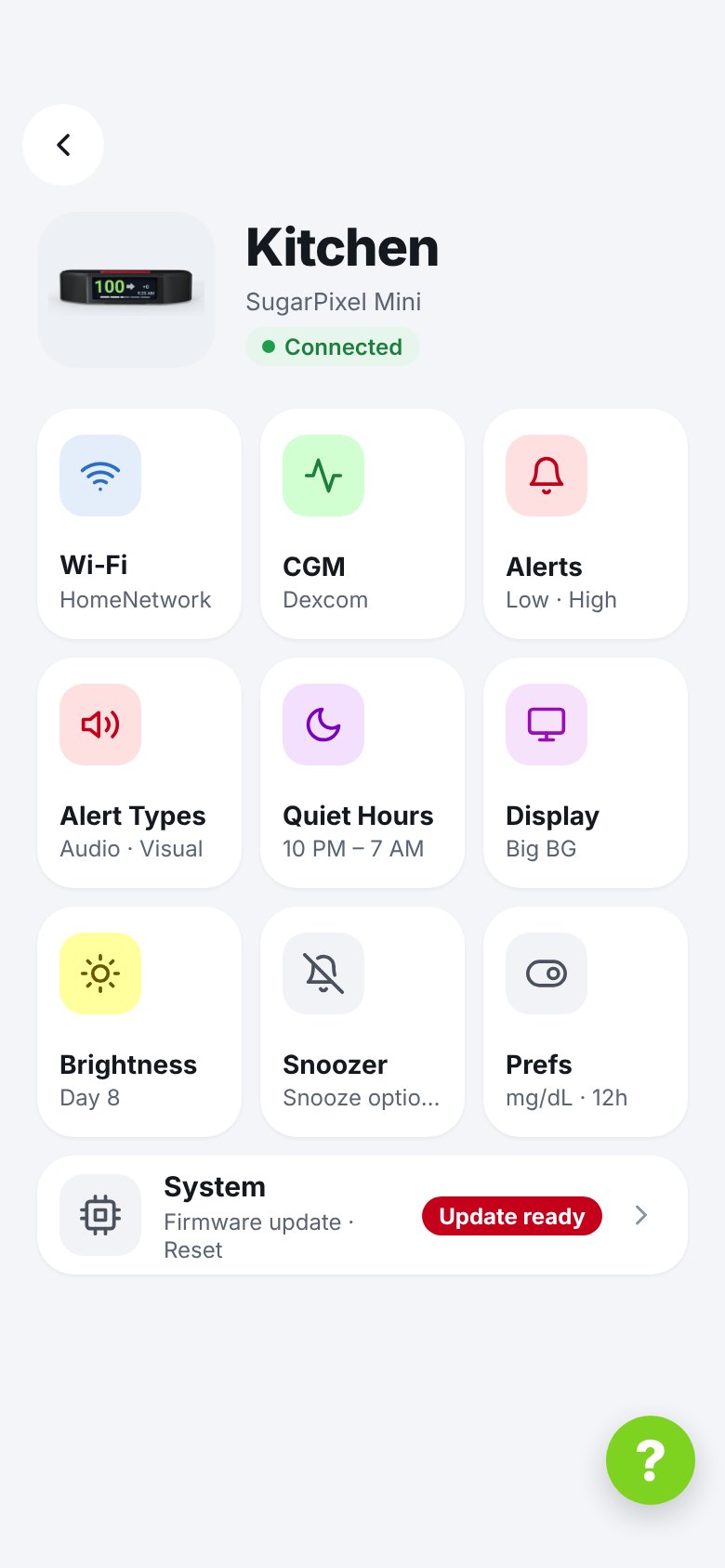
Remove a SugarPixel
Removing a SugarPixel only removes it from this phone. It is not reset and keeps all its settings. Do this when you give it to someone else, or if support asks you to pair it again.- Tap ⚙ next to its name, then Remove from this phone → Continue.
- Forget it in your phone’s Bluetooth settings: Settings → Bluetooth, tap ⓘ next to its name (the app shows the exact name, for example SugarPixelMini-2A28), then Forget This Device.
- Back in the app, tap I’ve forgotten it — Remove.