

Snoozing from the app works when your phone is within Bluetooth range — the SugarPixel’s card on the home screen must show Nearby.
Quick Snooze
One tap on the home screen snoozes all alerts for a set time
Quick Snooze
One tap on the home screen snoozes all alerts for a set time
Each SugarPixel’s card on the home screen has a quick snooze button showing its time, for example 15 Min Snooze. Tap it and your phone connects to the SugarPixel and snoozes all alerts (low, high and no data) for that time. It works whether or not an alert is going off, so you can also use it to snooze ahead of time.To change the time (5–60 minutes), tap ⚙ next to the SugarPixel’s name, then Quick snooze time in the options menu. You also choose it at the end of the setup wizard.
Advanced Snooze
Snooze ahead of time, until a time you choose
Advanced Snooze
Snooze ahead of time, until a time you choose
Tap Advanced Snooze on the SugarPixel’s card on the home screen, or open its settings and tap Snoozer.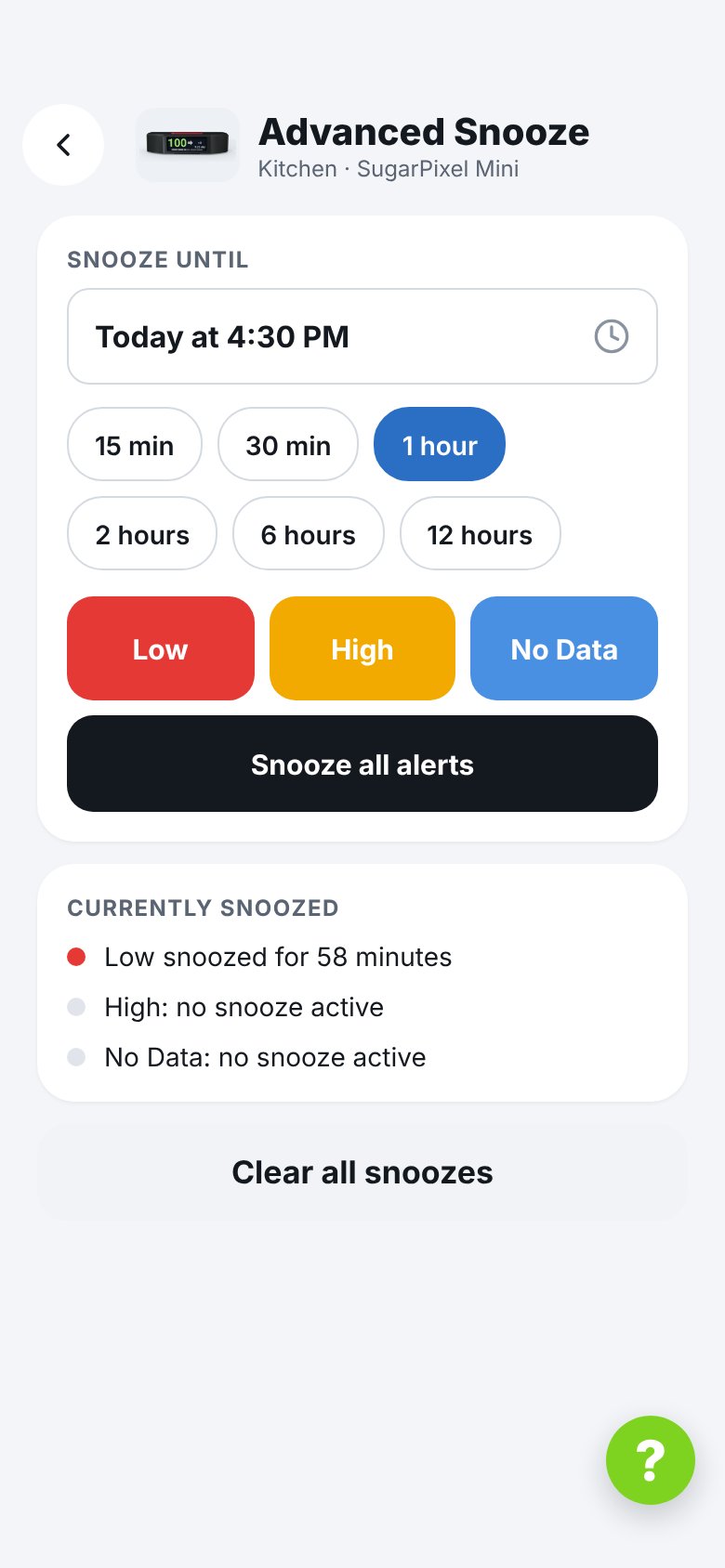
- Choose how long
Tap Snooze until to pick a date and time, or tap a preset: 15 min, 30 min, 1 hour, 2 hours, 6 hours or 12 hours. - Choose which alerts
Tap Low, High or No Data, or Snooze all alerts. If nothing is alerting, it applies as a pre-snooze — useful when stepping away from SugarPixel Mini/Classic.