

Have a SugarPixel+? It’s set up on its own touchscreen, not over Bluetooth — see Setup My SugarPixel+. The app is used for extras like Remote Snooze and photo uploads.
Updating from the previous app? The first time the new app opens, it shows We found your SugarPixels. Tick the ones that are yours and tap Add, then choose each one’s quick snooze time and tap Save. SugarPixels that haven’t been updated in over a year start unticked. You can add more later with +.
1
Install the app
Install the app and allow Bluetooth and notifications when your phone asks.A few things to know:
- The app doesn’t connect to your CGM and doesn’t need to be on the same phone as your CGM app.
- All settings are saved on SugarPixel Mini/Classic, not in the app. Changes save as you make them.
- One phone can manage several SugarPixels, and several phones can manage the same SugarPixel. Each phone adds it once.
2
Add your SugarPixel
If no SugarPixels have been added yet, the app opens Add a SugarPixel. Otherwise, tap the Add SugarPixel tile on the home screen.
- Tap SugarPixel Mini or SugarPixel Classic.
- Keep your SugarPixel plugged in and within a few feet of your phone. The app lists the ones it finds under Found nearby, for example SugarPixelMini-2A28 or SugarPixel-2A28 (Classic).
- Tap Add next to yours.
3
Enter the pairing code
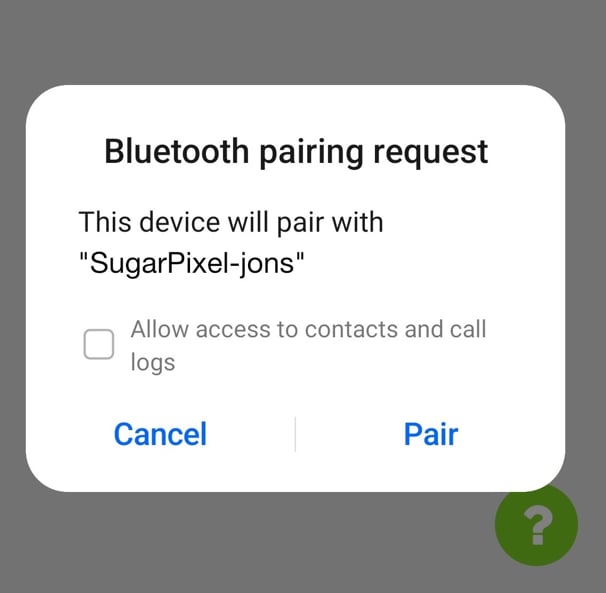
Tap Begin pairing. A 6-digit code appears on your SugarPixel Mini/Classic screen, and your phone shows a Bluetooth pairing pop-up. Type the code from the SugarPixel screen into the pop-up.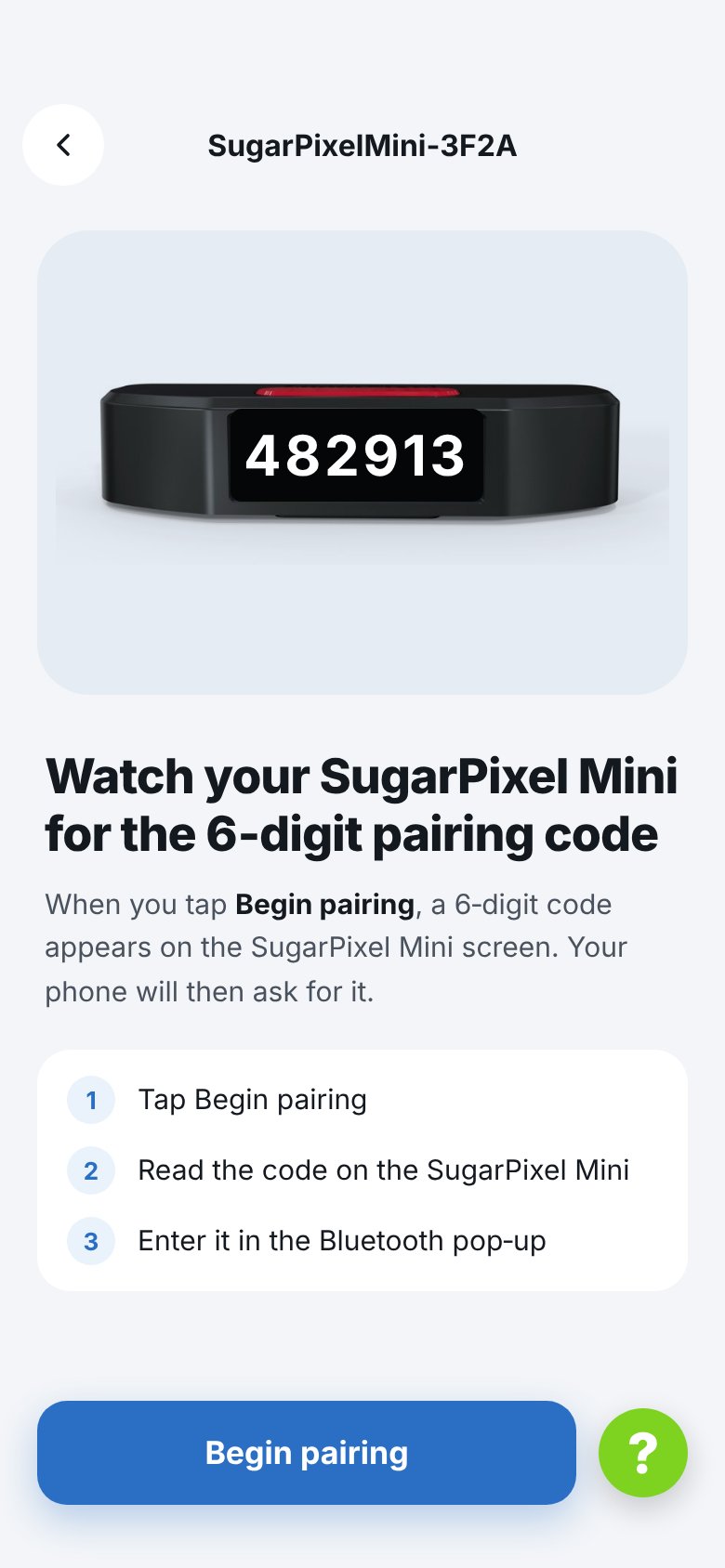
4
Follow the setup wizard
A new SugarPixel Mini/Classic opens the setup wizard. Each step saves to your SugarPixel as you go, so leaving early doesn’t lose anything. Tap X to exit and tap your SugarPixel on the home screen later to finish.
- Name — a name you’ll recognize, like the room it’s in. See Prefs.
- Connect to Wi‑Fi — pick your 2.4 GHz network, enter the password and tap Connect. See Wi‑Fi.
- Units & time — mg/dL or mmol/L, time zone and 24‑hour time. See Prefs.
- Connect a CGM — enter your CGM login and tap Test Connection. See CGM.
- Classic Add a second person? — show one or two people. If you add a second person, you connect their CGM next.
- Alerts — Low, High and No data alerts. See Alerts.
- Alert types and Quiet hours — shown when at least one alert is on. See Alert Types and Quiet Hours.
- Choose a display — tap Finish setup. See Display.