Choose a display in the Choose a display step of the setup wizard, or later in your SugarPixel’s settings under Display. Tap a display to select it — SugarPixel Mini updates immediately. If a display shows Available in firmware [version]. Tap to update., install the firmware update first. Expand a display below to learn more.

Displays

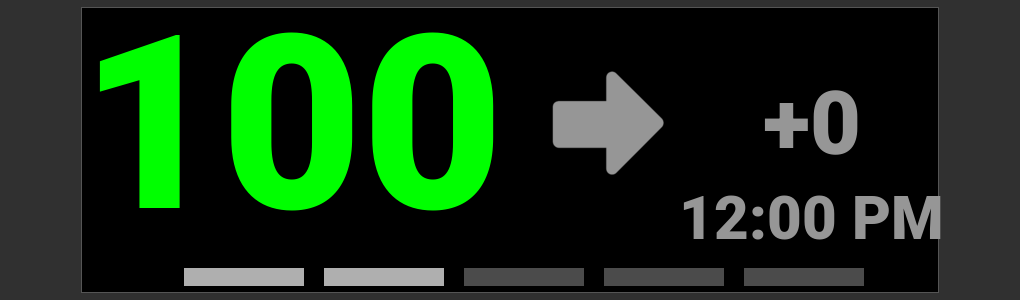
BG Arrow Delta
  • BG color coded - Color Reference Chart
  • Delta = change from prior reading, color coded by time elapsed - Delta Display
  • Bottom bars = minutes since last reading (1 bar = 1 min, 5 bars = 5+ min)
  • Old readings show time elapsed since the last reading
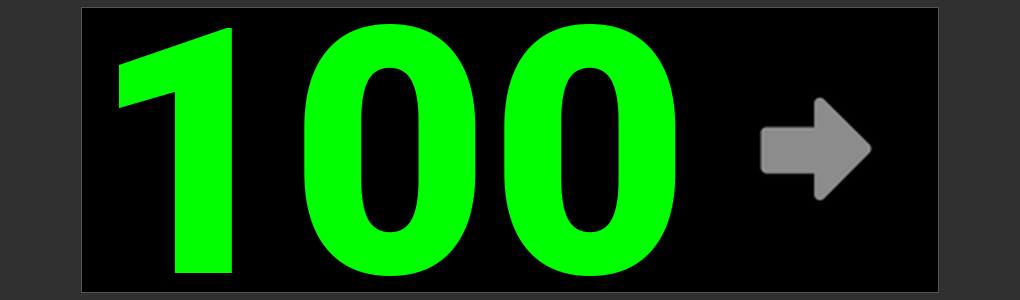
Big BG
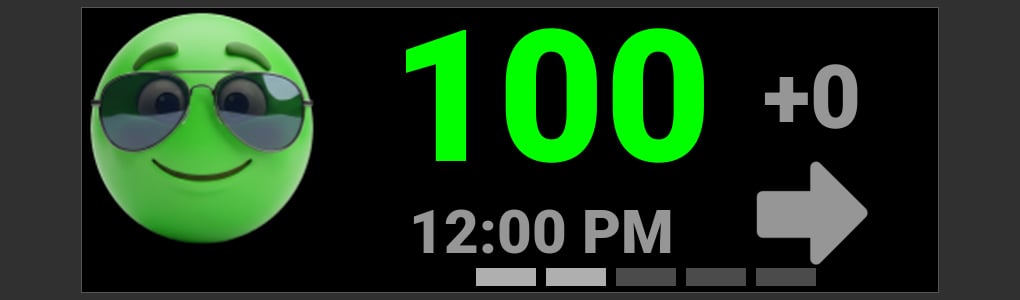
Emoji Smiley BG
  • Emoji face and BG color coded - Color Reference Chart
  • Bottom bars = minutes since last reading (1 bar = 1 min, 5 bars = 5+ min)
  • Old readings show time elapsed since the last reading
  • Unicorn: set your threshold value in display settings

Display Settings

Color Ranges

Open your SugarPixel’s settings and tap Display. Under Color ranges, drag the sliders to set when each color appears: Urgent low, Low, High and Urgent high. Green is used between your Low and High values. Emoji displays add a Unicorn slider. No readings sets how many minutes (10–30) pass before an old reading is shown as no data.

Brightness

Day and night brightness is set on the Brightness screen.