

Japan and Singapore users: Follow the Gluroo instructions instead to link SugarPixel Mini/Classic to your Dexcom account.
1
Select your server
If your Dexcom account was created in the USA, leave USA Server enabled. If your account was created outside the USA, turn it off.
2
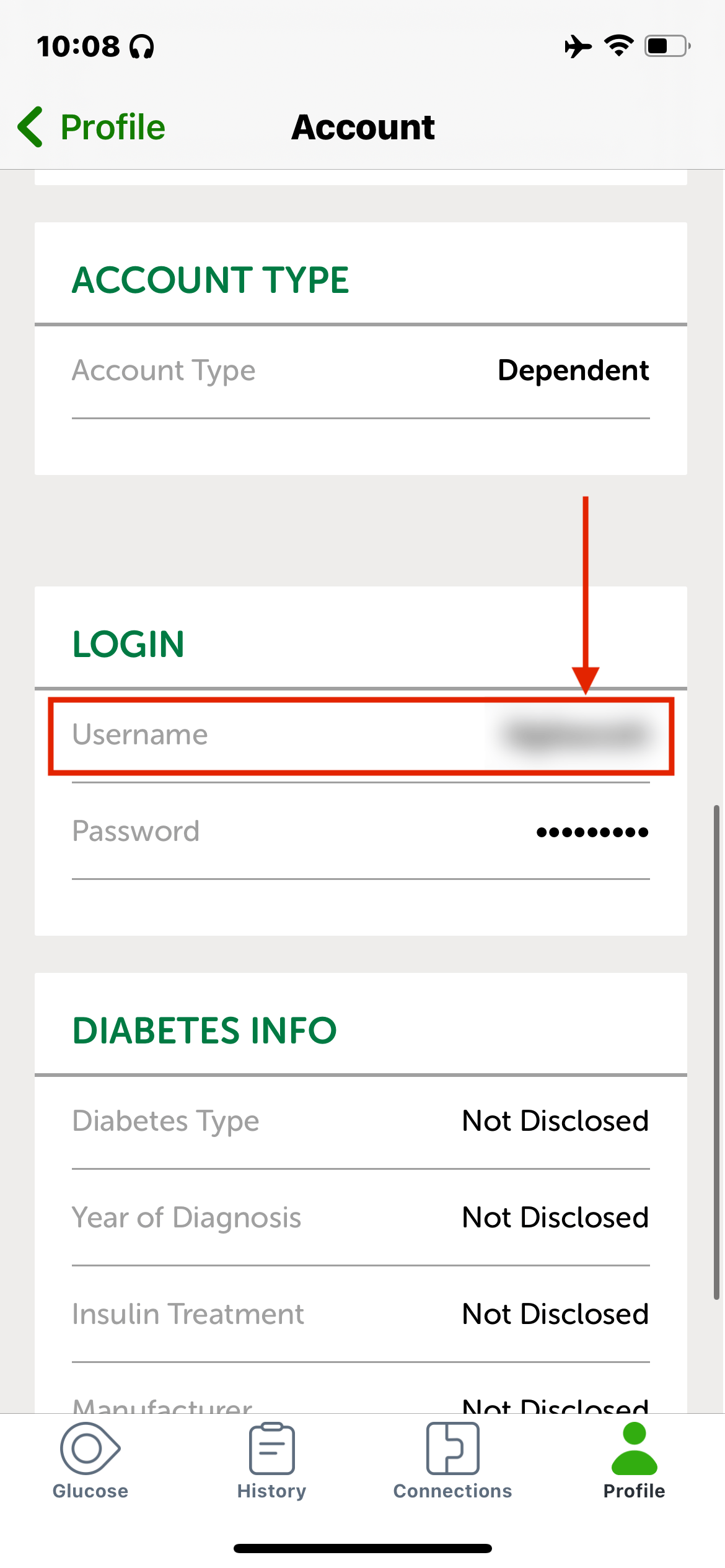
Find your Dexcom username
3
Test your login on the Dexcom website
Before entering your password in SugarPixel Mini/Classic, confirm it works on the Dexcom website first:
- USA: clarity.dexcom.com
- Outside USA: clarity.dexcom.eu
4
Enable Sharing
Dexcom only uploads real-time data when Sharing is enabled and at least one follower exists. Add a follower in the Dexcom app before continuing. If you don’t want others following you, invite yourself and install the Follow app with alerts disabled.
5
Enter your login in SugarPixel Mini/Classic
Enter your Dexcom username and password and tap Sync CGM. SugarPixel Mini/Classic will display “DOWNLOAD” and then begin showing readings.