

Start here: make sure the SugarPixel app is up to date in the App Store or Play Store, and that your SugarPixel Mini/Classic has the latest firmware installed. See Firmware Update.
1
Note the LibreLinkUp account
Write down the LibreLinkUp email shown on the CGM screen in the app. This is the account you need to accept the terms with.
2
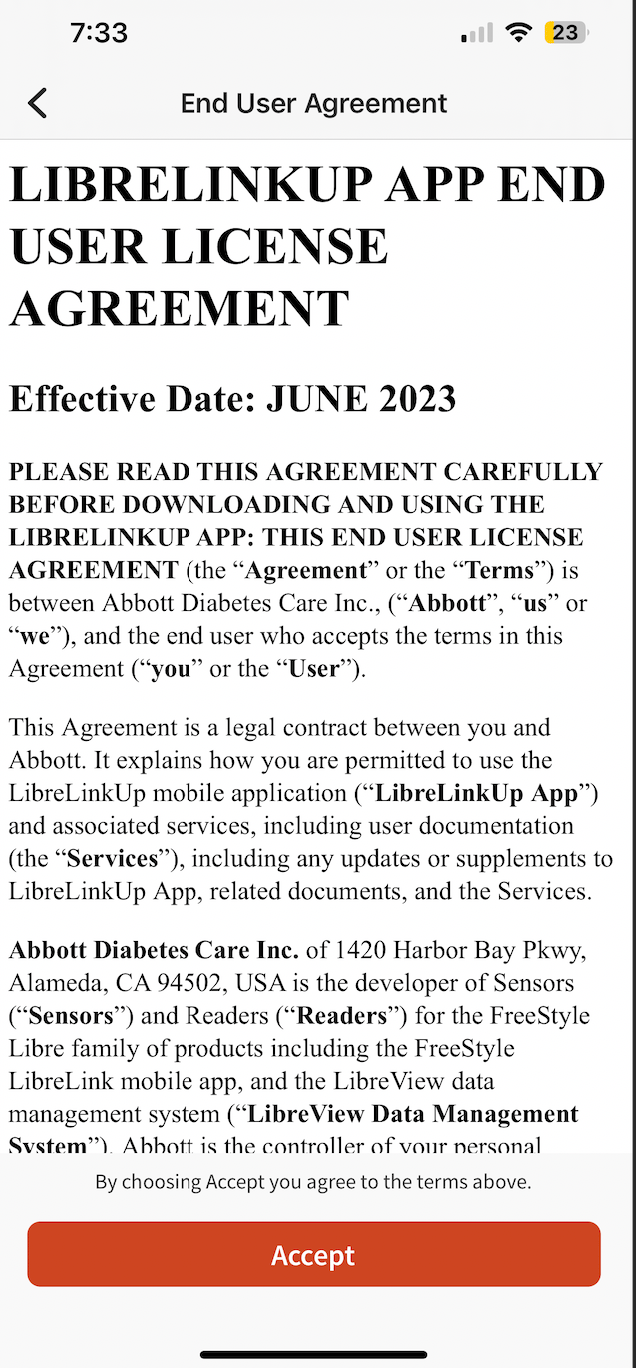
Log out of LibreLinkUp and back in
Log out of the LibreLinkUp app (not the main Libre app), log back in with that account, and accept the terms. If the LibreLinkUp app is installed on more than one phone, log out on all of them.If you get a login error, reset your LibreLinkUp password in the app.
3
Terms didn't appear?
Delete and reinstall the LibreLinkUp app, then log in again.
4
Following two people?
If SugarPixel Mini/Classic follows two LibreLinkUp accounts, repeat these steps for each one.
5
Restart SugarPixel Mini/Classic
Unplug SugarPixel Mini/Classic and plug it back in.